
Castle for PC is a search term used by people who want to watch Castle content on a computer. However, an Android app may not run on Windows like a normal PC program. You may need a compatible Android emulator, and the app must support that setup.
This guide explains your options, the steps to check, and the risks to avoid before you install anything.
What Is Castle for PC?
Castle for PC refers to ways users may try to access the Castle entertainment app on a desktop or laptop. The app is linked to movie and show streaming, but its PC support must be checked before use. An Android APK file does not work as a standard Windows program. So, check whether the app offers a PC version or supports a suitable Android emulator. Avoid websites that claim a PC version exists without clear proof.
The Castle app focuses on entertainment content, including movies and shows. Visit our homepage to learn more about the app and its available information.
Can You Use Castle on a Windows PC?
That depends on the app and your computer. If Castle offers a verified Windows version, follow its stated setup steps. If it only offers an Android app, you may need an Android emulator that supports the app. However, an emulator does not guarantee that Castle will work. Check the app source, system needs, and emulator support before you proceed.
Using Castle on a Windows Laptop
A Windows laptop may run supported Android apps through an emulator. Your laptop must meet the emulator’s system needs, and it needs enough memory and storage. Also, a stable internet connection helps with video streaming. Check these details before you try to run an Android app on your laptop.
Using Castle on a Desktop Computer
A desktop PC may offer more storage or memory than a laptop, but app support still matters. First, check your Windows version and hardware. Next, review the emulator’s requirements if you plan to use one. If Castle does not support that setup, better PC hardware will not fix the issue.
Ways to Access Castle on PC
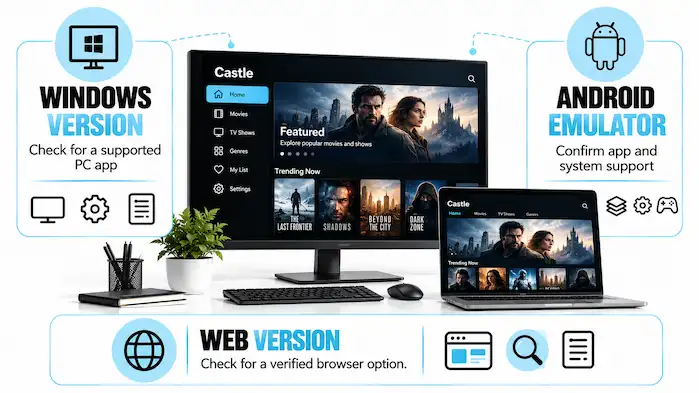
The right method depends on the versions and tools available. Do not assume that every method will work with Castle. Check the app’s current support details before you choose an option.
Option 1: Check for a PC Version
First, look for a PC version from a source you can trust. Read the publisher details and system requirements. Check that the file is meant for Windows. Avoid sites that offer unknown installers or make claims they cannot support. If you cannot verify a PC version, do not install a file just because its name includes Castle.
Option 2: Check Android Emulator Support
An Android emulator lets some Android apps run on a PC. However, each app may behave in a different way inside an emulator. Check whether the emulator supports your Windows version and whether Castle can run in that setup. Also, use a trusted emulator source and review its permissions before you install it.
Option 3: Use a Supported Web Version
Some entertainment services offer a web player that runs in a browser. Check whether Castle provides a working web version through a source you trust. Do not enter login details on a site unless you can confirm that it belongs to the service. If no verified web version exists, avoid websites that claim to offer one without proof.
How to Prepare Your PC
Before you try to use Castle on a computer, check your system and protect your files. These simple steps can help you avoid common problems.
Step 1: Check Your Windows Version
Open your PC settings and check which version of Windows you use. Then compare it with the requirements for the app or emulator. Install system updates when needed. This step helps you spot basic compatibility issues before setup.
Step 2: Check Your PC Storage
Make sure your computer has enough free storage for the tools you plan to use. An emulator may need extra space for its files and app data. Remove files you no longer need if storage is low. Do not delete system files to free up space.
Step 3: Check Your Internet Connection
Streaming needs a stable connection. Test your internet before you start. If videos buffer, try moving closer to your router or using a wired connection when possible. You can also pause other downloads that use a lot of bandwidth.
Step 4: Review the Software Source
Get software from its official publisher or another trusted source. Check the file name, publisher, and system needs before you install it. Avoid unknown installers that ask you to turn off security tools. If the source looks suspicious, stop the setup.
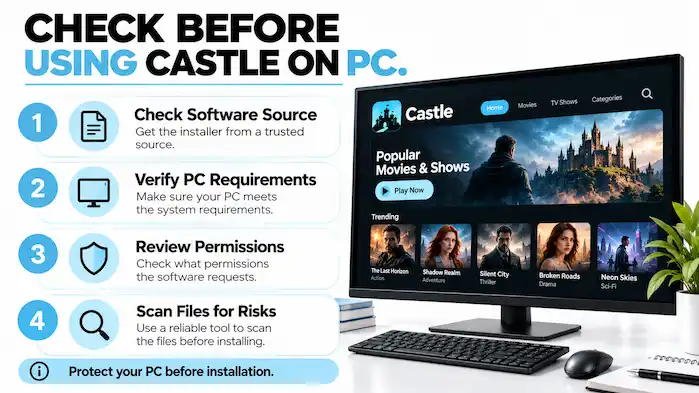
Before you install any app package, review the Castle APK download page for file checks, installation details, and safety tips.
How to Try Castle Through an Android Emulator
Only follow these steps if you have confirmed that Castle supports the emulator you plan to use. An emulator may not work with every app, and this method does not guarantee access.
Step 1: Choose a Trusted Emulator
Review the emulator’s publisher, system needs, and privacy details. Download it from a source you trust. Avoid modified installers or files from unknown sites.
Step 2: Install and Open the Emulator
Follow the publisher’s setup steps. Once the emulator opens, check that it runs well on your PC. If it shows errors or asks for unusual access, stop and review the software details.
Step 3: Check the App Source
Before adding Castle, look for a verified app listing or a trusted source for its Android package. Check whether the app supports emulator use. Do not use a random APK just because the file has the right name.
Step 4: Install Only If Support Is Clear
Follow the app’s stated installation steps if you can verify the file and confirm compatibility. Read each permission prompt. Stop if the package or source seems unsafe. Do not disable your PC’s security tools to force the app to run.
Step 5: Test the App
If the app opens, test its menus and playback controls. Check how it responds to your mouse and keyboard. If it fails, note the error message and review the app and emulator requirements. Avoid downloading extra files from unknown sites to fix the problem.
Is Castle for PC Safe?
Safety depends on the file source, software, and permissions. A file can carry harmful code even when its name looks familiar. So, check the publisher and scan files with a trusted security tool when possible. Keep Windows and your security software up to date. Also, avoid tools that ask you to turn off key protections without a clear reason.
Protect Your Login Details
Only enter personal details on a service you can verify. Do not share passwords with unknown websites or tools. If a page asks for payment or account details without clear information about the service, leave the page. These steps help protect your account and personal data.
Avoid Modified PC Installers
Be careful with files that claim to unlock paid features, remove all limits, or provide special access. Such claims do not prove that a file works or is safe. Modified installers may also contain unwanted software. Use trusted sources and avoid packages that you cannot verify.
Common Castle for PC Problems
Problems may come from unsupported software, weak internet, low storage, or emulator limits. Check the error first, then try the steps below.
Castle Will Not Open
Check whether the app supports your PC setup. Restart the emulator or computer and review any error message. If the app still fails, check the software requirements. Reinstalling the app may not help if the setup is not supported.
Castle Will Not Install
The file may not match the software or device you use. Check whether it is an Android APK or a Windows installer. These file types are not the same. Use only a trusted source and do not force an incompatible file to install.
Videos Keep Buffering
Test your internet connection and pause other downloads. Close apps that use a lot of network data. If other services stream well but Castle does not, the issue may relate to the app or its content source.
The Emulator Runs Slowly
Check the emulator’s system needs and close programs you do not need. Make sure your PC has enough free storage and memory. Update the emulator through its trusted source if an update is available. If performance remains poor, your computer may not meet the tool’s requirements.
The App Shows an Error
Read the full error message and check the app’s support details. Restart the software and test your connection. If the error continues, avoid random fixes from unknown websites. The app may not support your current setup.
Pros and Cons of Using Castle on PC
Using a computer can offer a larger screen and familiar controls. However, the setup may take more work than using a supported phone or TV.
Pros
Cons
Frequently Asked Questions
Does Castle Have a PC Version?
Check the app’s trusted source for a Windows version. Do not assume one exists unless the publisher provides clear details.
Can I Use Castle on a Windows Laptop?
It depends on the app’s support. A compatible emulator may work for some Android apps, but it does not guarantee that Castle will run.
Can I Install Castle APK on a PC?
An Android APK does not install like a normal Windows program. You need a supported Android environment, and the app must work with it.
Is Castle for PC Safe?
Safety depends on the source and the software you use. Check the publisher, scan files when possible, and avoid unknown installers.
Why Does Castle Not Work on My PC?
Your setup may not support the app. Other causes include low storage, weak internet, or emulator errors. Check the error message and system needs first.
Can I Watch Castle Through a Browser?
Only if Castle offers a working web version. Check a trusted source before entering account details or using a website that claims to provide access.
Conclusion
Castle for PC may appeal to users who want to watch entertainment on a computer. However, access depends on the available app version and PC support. Check for a verified Windows version or confirmed emulator support before you install anything. Also, review file sources and permissions to protect your computer. If Castle does not work, check the error and system needs before trying another method.