
Castle APK
Download for Android
The Castle app is a movie streaming app that gives users a way to explore movies and other entertainment
content. It focuses on video viewing and content discovery through an app interface.
Security Verified
Castle App is a movie streaming app that gives users a way to explore movies and other entertainment content. It focuses on video viewing and content discovery through an app interface. Users can learn about its features, check device compatibility, and review installation requirements before they get started. Moreover, understanding how the app works helps users make informed choices about its use. This page explains Castle APK, its main features, viewing experience, device support, safety, and common problems.
What Is Castle App?
Castle App is a movie streaming app designed for users who want to explore video entertainment through a mobile app. It provides an interface for accessing available content and starting video playback. However, the exact content library and available functions can depend on the app version and its source. Users should check the app details before they rely on a specific feature. This helps them understand what the app offers and whether it meets their needs.
Understanding Castle APK
Castle APK refers to the Android application package used to install the app on a compatible Android device. An APK file contains the files that Android needs to install an app. Users may find APK files outside the usual app store process, so the source matters. Before installing a file, check its publisher, version details, and requested permissions. These checks can help users avoid unknown or altered files. Also, confirm that the file matches the app you intend to install.
How Castle App Works
The app gives users a way to browse available entertainment and open content for playback. The exact layout, categories, and playback controls depend on the version in use. Therefore, users should explore the available menus and check the options shown in their own app. A stable internet connection can also help when the app streams video online. If a feature does not appear, the installed version may not support it.
Key Features of Castle App
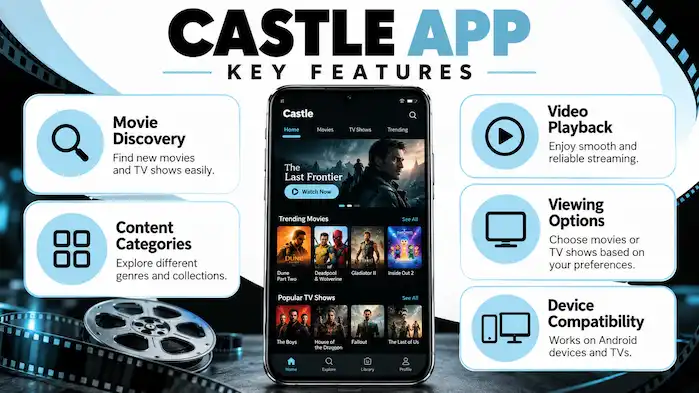
Castle app focuses on movie streaming and content discovery. Its main purpose is to help users find available entertainment and access video playback through an app interface. However, users should confirm specific features in the version they install. Claims about 4K video, offline viewing, live channels, or ad-free playback need proof before users can rely on them. A clear review of the available options gives users a better view of what the app can do.
Movie and Entertainment Categories
Content categories can help users browse a video library and find titles that match their interests. The available categories depend on the content offered by the app. Users should check the actual menu rather than assume that every version includes the same selection. In addition, the presence of a category does not guarantee that every title will remain available. Content libraries can change over time, so users should check the current options.
Video Playback Options
Video playback lets users open and watch available content within the app or through a supported player. The controls may vary by version and device. Users should check whether the player offers options such as pause, seek, or volume control. They should also review any external player requirement before they start watching. These details help users understand the viewing process without relying on claims that the app may not support.
Video Quality and Streaming
Video quality affects picture clarity, data use, and playback performance. The available quality settings depend on the content source, player, connection, and app version. A stronger internet connection can help reduce buffering, but it cannot fix every playback issue. Users should check the options shown on their device before expecting HD or Full HD playback. They should also keep data limits in mind when streaming videos on a mobile network.
Content Discovery and Navigation
A clear interface helps users move through available content and find relevant titles. Menus, search tools, and category filters can make this process easier when the app provides them. However, users should not assume that every version has the same navigation tools. Explore the options that appear in the installed app and check how each section works. This approach gives users a clear view of the available features.
Castle Movies and TV Shows
Castle movies and other entertainment content form the main focus of the app. Users can explore the titles that appear in its available library and select content for viewing. The range of titles may vary by version and source. Therefore, a general description of the app should not promise a fixed number of movies, specific titles, or access to every popular streaming service. Users should check the current library to see what the app offers.
Exploring Available Movies
Users can review the available movie listings and choose a title that interests them. The actual selection depends on the content supplied through the app. Some titles may become unavailable, while other options may appear in later versions. For this reason, users should check the current listings instead of relying on an old catalog or an unsupported content claim. They should also consider the source of the content before viewing it.
Browsing Other Entertainment Content
The app may present different types of video content, depending on the version and its available library. Users should check the displayed categories to understand the range of entertainment on offer. Do not assume that a movie streaming app includes live television, sports, or every type of series. Those features require confirmation. Checking the available menus gives users a more accurate picture of the content they can access.
Castle TV and the Viewing Experience
Castle TV is a search term linked to the Castle entertainment app, but the name alone does not confirm support for every television device. Users should check the app’s compatibility details before trying to install it on a TV. Android TV support, remote control use, screen layout, and playback options can differ from the mobile experience. A version made for phones may not work as expected on a television. Confirm the supported device type before proceeding.
Castle App Compatibility
Device compatibility depends on the app package, operating system, hardware, and installation method. Users should review these details before they install an APK. A file that works on one device may fail on another because of system limits or software differences. Moreover, the presence of an installation guide does not prove that the app supports every platform. Check the available requirements and use a compatible version from a source you can trust.
Castle APK for Android
Android users should check their device’s operating system and the APK requirements before installation. They should also confirm that the file comes from a reliable source and matches the intended app. Android may block an installation when the file conflicts with device settings or system requirements. In that case, users should review the error message instead of changing security settings without a clear reason. Avoid installing files from unknown sources when their origin cannot be checked.
Android users can learn more about device compatibility, installation steps, and safety checks in our Castle APK for Android guide.
Castle APK for Android TV
Android TV users need to confirm that the app supports their device and its interface. A mobile APK may install but still offer poor navigation or limited remote control support. Check for a version intended for television use before trying an installation method. Also, review the device requirements and source of the file. These steps can help users avoid compatibility problems and reduce the risk of installing an unsuitable package.
Castle for PC
Users who want to run the app on a computer should first check whether a native PC version exists. An Android APK does not work as a standard Windows program. Some Android apps can run through compatible emulation software, but this method depends on the app and computer setup. Do not assume that every version supports PC use. Check the available requirements and any relevant compatibility information before choosing an installation method.
Castle on Apple Devices
Android APK files do not install as native apps on an iPhone or iPad. Apple devices use a different app format and installation process. Users should check whether a verified iOS version exists before trying to access the service on an Apple device. Avoid websites that promise unsupported installation methods or ask users to install unknown profiles. Confirm the source and platform support before providing personal information or changing device settings.
Castle App Information at a Glance
Users should review the app’s basic details before installation. Important information includes the app name, publisher, supported operating system, version, file size, and source. These details help users compare the file with the information supplied by its publisher. However, do not rely on a name or logo alone to confirm the app’s identity. If the source does not provide clear details, treat the file with caution and avoid making assumptions about its origin.
How to Get Started With Castle App
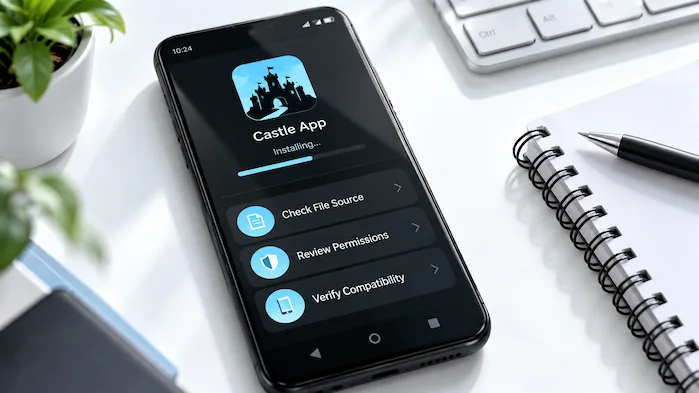
Before installing the app, confirm that your device meets the stated requirements and that the file comes from a source you trust. Review the app details and requested permissions, then follow the instructions provided by a reliable source. If Android displays a warning, read it before you proceed. Do not disable security features just to force an installation. If the source, file identity, or requirements remain unclear, wait until you can verify them.
Before installing the app, read our Castle APK installation guide to check the file source, device compatibility, and safety requirements.
Castle App Safety and Privacy
APK installation requires care because a file from an unknown source may contain unwanted or harmful code. A familiar app name does not prove that a file is genuine. Users should check the publisher, review the requested permissions, and avoid files from suspicious websites. They should also read the available privacy information to understand how the app may handle data. No single check can guarantee safety, so use several checks before installing an app.
Check the APK Source
Choose a source that provides clear information about the app and its publisher. Compare the file details with reliable release information when available. A checksum can help confirm that a file matches a trusted reference, but it cannot prove that the file itself is safe. Avoid download pages that hide the file source or make claims without evidence. If you cannot confirm the file’s origin, do not install it.
Review App Permissions
Check the permissions that the app requests during installation or use. Each permission should have a clear purpose related to the app’s functions. For example, an app may need network access to stream online video. However, unrelated access to sensitive data deserves closer review. Deny permissions that the app does not need when your device allows it. If the app requires access that you cannot explain, consider avoiding it.
Protect Your Personal Information
Do not share passwords, payment details, or other sensitive information unless you understand why the app needs them and can verify the service. Review the privacy policy and avoid entering account details on pages you do not trust. Keep your device and browser updated to reduce common security risks. These steps cannot remove every risk, but they can help you make safer choices when using an app.
Pros and Cons of Castle App
Castle app may suit users who want to explore movie content through an Android app. However, its value depends on the content available, the quality of the installed version, and compatibility with the user’s device. Users should check these factors before deciding whether the app meets their needs. They should also weigh the source and privacy risks that come with installing APK files outside a trusted app store.
Pros
Cons
Common Castle App Problems and Fixes
Installation or playback issues can arise from a damaged file, device limits, a weak connection, or a software conflict. Users should identify the cause before making changes. Start with the error message and the device requirements. Then check the file source, connection, storage space, and app version. Avoid downloading replacement files from unknown websites, as this can create further problems.
Castle APK Will Not Install
First, check that the file finished downloading and that your device supports the package. A damaged APK or an incompatible version can prevent installation. Review the error message and compare the file details with the source information. Make sure your device has enough free storage. If the problem continues, remove the damaged file and obtain a verified copy from a trusted source rather than trying random downloads.
Castle App Keeps Buffering
Buffering can occur when the internet connection cannot deliver video data at a steady rate. Test your connection and move to a more stable network if possible. Pause other downloads that use a large share of your bandwidth. You can also lower the video quality if the player offers that option. If other apps stream without trouble, the issue may involve the content source or player rather than your connection.
Castle App Crashes or Closes
An app may close when the device lacks resources or when the installed version has a fault. Restart the device and close apps that you do not need. Check for enough free storage and review any available update information from a trusted source. If the problem continues, confirm that the app supports your operating system. Avoid installing random modified versions as a quick fix because they can add security risks.
Castle App Shows Playback Errors
Playback errors may result from a connection problem, an unavailable video source, or a player issue. Try another available title to see whether the problem affects all content. Check your connection and restart the app. If the error appears for one title only, its source may be unavailable. Do not assume that changing device settings will fix every error. Seek help from a reliable source if the message continues.
Frequently Asked Questions
Conclusion
Castle app offers a way to explore movies and other available video entertainment through an app interface. Users should review its features, device compatibility, and file source before installation. They should also check app permissions and privacy information to understand the risks. If an installation or playback problem occurs, identify the cause before changing device settings. These checks help users make informed choices and avoid relying on claims that they cannot verify.