
Castle APK for Android TV lets users explore ways to watch entertainment on a larger screen. However, the app may not work on every TV. Some TVs use systems that do not support Android apps.
So, check your TV model and system before you install anything. This guide covers device support, setup, safety, and common problems.
What Is Castle APK for Android TV?
Castle APK for Android TV is an app package for the Castle entertainment app. Users may want to install it on a TV to watch movies and shows on a larger screen. However, support depends on the TV and the app version. Not every Smart TV runs Android TV, and some TVs block APK files. Check your device details before you try to install the app.
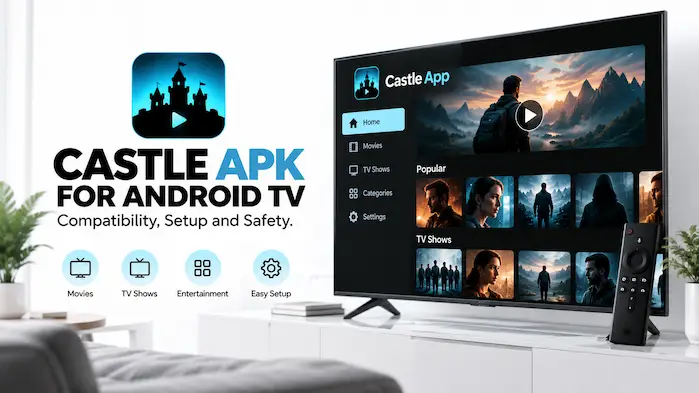
The Castle app provides an entertainment-focused experience for users who want to explore movies and shows. Visit our homepage to learn more about the app.
Key Things to Check Before Using Castle TV
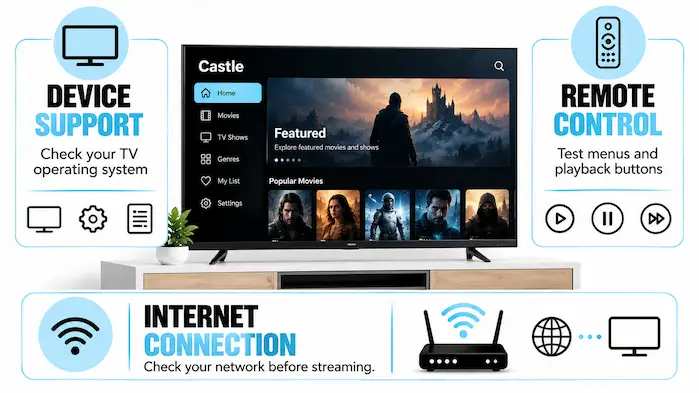
Before you install an app on your TV, check a few basic things. First, make sure your device can run the app. Next, check whether the app works with a TV remote. Also, test your internet connection. These steps can help you avoid common setup and playback problems.
Device Compatibility
Start by checking your TV’s operating system. You can find this detail in the settings menu. Android TV and Google TV may support Android apps, but support can vary. Samsung and LG TVs often use other systems. As a result, they may not install Android APK files. Check your TV model and the app’s needs before you continue.
Remote Control and Navigation
A TV app should work with the remote. You should be able to move through menus, select items, and control video playback. However, some apps work better on phones than on TVs. Test the controls before you use the app for long viewing sessions. If the remote does not work, the app may lack proper TV support.
Internet and Video Playback
A stable internet connection helps videos play without long pauses. Weak Wi-Fi can cause slow loading and buffering. So, test your connection near the TV. You can also restart your router if the network feels slow. In addition, check whether your device supports the video format used by the app.
How to Install Castle APK on Android TV
The right setup method depends on your TV and the app. First, check whether a trusted app store offers a version for your device. If it does, read the app details before you install it. If you plan to use an APK file, check the source and device support first. Do not install a file if you cannot confirm where it came from.
Step 1: Check Your TV System
Open your TV settings and find the device information section. Check the model and operating system. Then compare these details with the app’s stated needs. Also, install any available system updates. This step can help you spot a device that does not support the app.
Step 2: Check the File Source
Find clear details about the app and its publisher. Check the file name and any package details you can verify. Avoid sites with fake download buttons or bold claims about safety. A site may look real without offering a safe file. So, use a source you can trust.
Step 3: Check Your Install Options
Use a trusted app store if it offers a version for your TV. If you plan to install an APK, make sure your device supports this method. The steps can differ by TV brand and model. Follow your TV maker’s advice. Do not change security settings just to force an app to install.
Step 4: Review App Permissions
Read the install prompt before you approve it. Check which permissions the app asks for. Stop if a request seems unrelated to video streaming. Also, avoid turning off key security tools to complete the setup. These checks can help you reduce risks.
Step 5: Open and Test the App
After setup, open the app and test its menus. Use the remote to move between items and select options. If the app opens, try its available playback controls. If it fails, note the error message and check device support. Do not try random APK files to fix the problem.
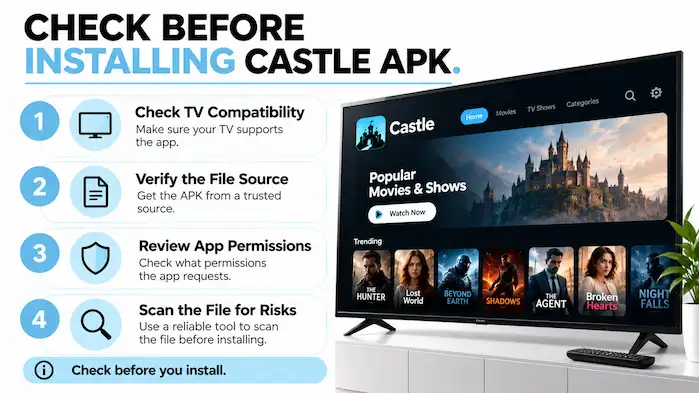
Before you try to install the app on your television, review the Castle APK download page for file checks and installation guidance.
Can You Use Castle APK on Any Smart TV?
No. Not every Smart TV can run Android APK files. Android TV and Google TV may support some Android apps, while other TVs use different systems. Even an Android-based TV may lack the features an app needs. So, check your exact TV model before you install anything.
Castle APK on Samsung and LG TVs
Many Samsung and LG TVs do not run the standard Android TV system. Because of this, they may not install Android APK files. Check your TV’s app store and support page first. You could also look at an external Android TV device. However, check app support before you buy extra hardware.
Castle APK on an Android TV Box
Some Android TV boxes can run Android apps. However, the name alone does not prove that a box supports every APK. Check its system, storage, and hardware details. Also, make sure the file comes from a trusted source. Avoid boxes that ask you to remove key security features to install an app.
Castle APK Safety and Privacy on TV
Check the file source, app permissions, and publisher details before you install an app. An APK can contain harmful code, even when its name looks familiar. So, use a trusted source and scan the file with a known security tool when possible. Do not enter personal or payment details unless you know why the app needs them.
Check App Permissions
Review each permission before you allow it. A streaming app may need internet access to load content. However, requests for contacts, messages, or other private data may not fit its purpose. Deny access when you can and check whether the app still works. If a request seems unsafe, do not continue.
Protect Your TV
Keep your TV or streaming box up to date. Remove apps you no longer use. Also, avoid files from unknown sites. If you see odd pop-ups or notice strange app behavior, stop using the app. Remove it if needed and run a security check when your device supports one.
Common Castle APK Problems on Android TV
Setup and playback issues can have several causes. Your TV may not support the app, or your network may be weak. Low storage can also cause trouble. So, check the error message first. Then try the simple fixes below.
Castle APK Will Not Install
Check whether your TV supports APK files. Make sure the file finished downloading and that your device has enough free space. If the TV says the package is not supported, do not keep trying other files at random. Check the app’s needs and your TV model first.
Castle APK Keeps Crashing
Restart your TV and check for system updates. If the app still closes, check your free storage. You can also clear the app cache if your TV offers that option. However, clearing app data may remove saved settings. If the problem remains, the app may not support your device.
Videos Keep Buffering
Test your internet speed and Wi-Fi signal. Move the router closer to the TV if you can. You can also pause other activities that use the network. Then close and reopen the app. If other apps stream well but this one does not, the problem may come from the app or its content source.
The Remote Does Not Work
Some apps do not support TV remotes well. Try moving through the menus with the arrow keys and select button. If these controls fail, check whether the app supports TV use. Do not install unknown remote-control tools just to make the app work.
The App Shows a Playback Error
Check your internet connection and restart the app. Read any error message on the screen. Your device may not support the video format, or the content source may have a problem. If the error keeps showing, check the app’s support details before you reinstall it.
Pros and Cons of Castle APK for Android TV
Watching content on a TV can feel more comfortable than watching on a phone. Still, the experience depends on device support and app controls. Check these points before you install the app.
Pros
Cons
Frequently Asked Questions
Does Castle APK Work on Android TV?
It depends on the app and your device. Check your TV model and the app’s needs before you install it.
How Do I Install Castle APK on Android TV?
First, check the file source and device support. Then use a trusted app store if it offers a version for your TV. For manual setup, follow your TV maker’s steps.
Can I Install Castle APK on Samsung TV?
Many Samsung TVs do not support standard Android APK files. Check your TV’s app store and support page before you try to install one.
Why Will Castle APK Not Install on My TV?
Your TV may not support the file. Other causes include low storage or an incomplete file. Check the error message and device details first.
Can I Use Castle APK with a TV Remote?
That depends on the app. Test the remote controls and check whether the app supports TV navigation.
Is Castle APK Safe for Android TV?
Safety depends on the file source, permissions, and app behavior. Use a trusted source, scan the file when possible, and avoid apps that ask for access they do not need.
Conclusion
Castle APK for Android TV may help users explore the Castle entertainment app on a larger screen. However, support can vary by TV model and system. Check your device, file source, and app permissions before you install anything. Also, test the remote and internet connection if you run into problems. If the app does not work, check the cause before trying another file.