
Castle App Login is a topic users may search for when they want to access an account or fix a sign-in problem. However, the available login options depend on the app version and its features. Some versions may not need an account.
This guide explains what to check before signing in, how to handle common errors, and how to protect your personal details.
What Is Castle App Login?
Castle App Login refers to the process of signing in if the app offers an account feature. The app may show a sign-in screen, ask for account details, or let users open its main interface without an account. The exact process can vary. So, check the app screen and its available help details before you enter any personal information.

The Castle app focuses on entertainment content, including movies and shows. Visit our homepage to learn more about the app and its available information.
Does Castle App Require Login?
Do not assume that every version needs an account. Open the app and check whether it shows a sign-in screen or lets you browse its main sections. If you see a login option, read the instructions on the screen. If no account option appears, do not look for an unknown login website or enter your details on a third-party page.
How to Check Castle App Login Options
The steps below can help you find the available sign-in options without risking your account details.
Step 1: Open the App
Open the app on your device and wait for the main screen to load. Look for a sign-in button, account icon, or profile section. If you do not see one, the app may not offer a login feature in your version.
Step 2: Review the Sign-In Screen
If the app shows a login screen, read the instructions before you continue. Check which details it asks for and why it needs them. Do not enter personal information if the screen looks suspicious or the app source is unclear.
Step 3: Follow the App’s Instructions
Use the sign-in method shown by the app, if you can verify that it is genuine. Do not follow login steps from unknown websites. If the app asks for an account but provides no clear way to create or recover one, stop and check for reliable support information.
Step 4: Check for an Error Message
If sign-in fails, read the full error message. It may point to a network issue, incorrect details, or an app problem. Note the message before trying another step. This can help you avoid repeated attempts that do not solve the issue.
Common Castle App Login Problems
Login problems can have different causes. A weak internet connection, an app error, or incorrect details may block access. Start with basic checks before you make changes to your device.
Castle App Login Not Working
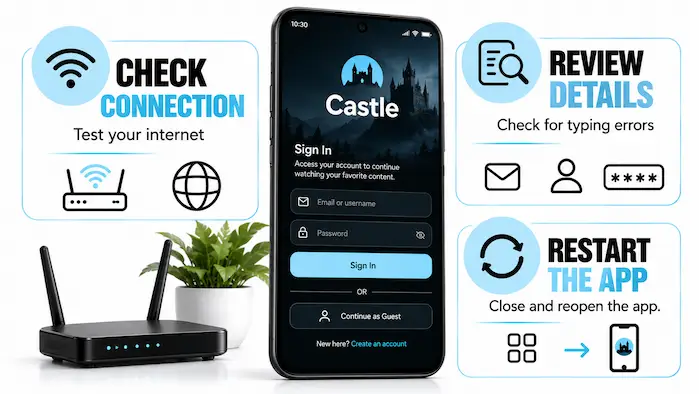
First, check your internet connection. Close the app and open it again. If the problem remains, check whether the app needs an update from a trusted source. Do not reinstall it from an unknown website just to fix a sign-in error.
Login Screen Keeps Loading
A slow connection may stop the screen from loading. Test your internet and try again. You can also restart your device. If other apps work but the login screen does not, the issue may relate to the app or its service.
Incorrect Login Details
If the app reports that your details are wrong, check what you entered. Make sure there are no extra spaces or typing errors. If the app offers a password reset option, use it only through the app or a verified account page. Never share your password with someone who claims they can unlock your account.
Castle App Login Page Does Not Appear
The app may not offer a login feature, or the current version may use a different layout. Check the main menu and available app information. Avoid websites that claim to provide a separate login page unless you can verify that the service operates it.
Login Fails After an Update
An update may change the app’s layout or cause a temporary error. Restart the app and check your connection. If the issue continues, review any update notes or support details from a trusted source. Avoid installing older or modified files without checking their source and risks.
Before installing the app, review the Castle APK download information and check the file source, device support, and installation requirements.
Castle App Login Safety Tips
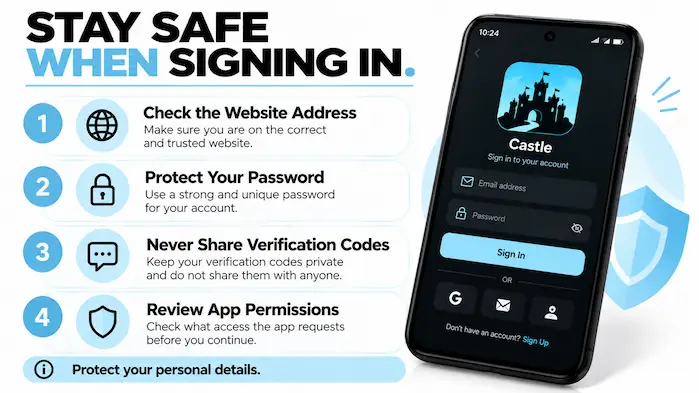
Protect your details whenever an app asks you to sign in. Use only a login screen you can verify. Avoid links from unknown messages and websites. Also, do not share passwords, verification codes, or recovery details with anyone. These simple steps can help reduce the risk of account theft.
Avoid Fake Login Pages
Some websites use app names to attract visitors. A familiar logo or page design does not prove that a site is genuine. Check the website address and publisher details before entering any information. If you cannot confirm the source, close the page.
Protect Your Password
Use a strong password that you do not use on other sites. If the app supports extra account protection, review that option. Never save your password on a shared device. Also, sign out when you use a device that other people can access.
Review App Permissions
Check the permissions the app requests. Access to personal data may not fit the purpose of an entertainment app. If a request seems unnecessary, deny it where possible and reconsider whether you should continue using the app.
How to Fix Castle App Access Problems
If you cannot access the app, follow these basic checks in order. First, test your internet connection. Next, close and reopen the app. Then restart your device and check for updates from a trusted source. If the problem remains, note the error message and look for reliable support information.
Do not share your login details with unknown support accounts. Also, avoid tools that claim to bypass login checks or unlock an account. These tools may put your device or personal data at risk.
Pros and Cons of App-Based Login
A login feature can help an app manage user accounts, but it can also create extra steps. The actual benefits depend on the options the app provides.
Pros
Cons
These points describe common account features, not confirmed Castle app functions.
Frequently Asked Questions
Does Castle App Need Login?
That depends on the app version. Check the main screen to see whether it asks you to sign in or lets you browse without an account.
How Do I Fix Castle App Login Errors?
Check your internet, restart the app, and read the error message. If the problem continues, look for reliable app support details.
Why Is Castle App Login Not Working?
Possible causes include a weak connection, incorrect details, or an app error. Check the message on the screen before trying more fixes.
Is Castle App Login Safe?
Safety depends on the app source and the sign-in page. Use a source you can verify, and never share passwords or verification codes.
Can I Use Castle Without an Account?
That depends on whether your version requires sign-in. Check the app’s main screen and available instructions rather than relying on claims from unknown sites.
Where Can I Find Castle App Login Help?
Start with the app’s own help details, if available. Avoid third-party pages that ask for your password or promise to unlock an account.
Conclusion
Castle App Login help can be useful when users face sign-in errors or want to check account options. However, the available features may vary by app version. Check the sign-in screen, read error messages, and use only sources you can verify. Protect your password and personal details, and avoid unknown login pages or tools that promise to bypass account checks.