
Castle APK Compatibility matters before you install an app on your phone or tablet. A file may not work if your device does not meet its needs. Low storage or an unsupported Android version can also cause problems.
This guide explains how to check your device, review app requirements, and avoid common installation errors.
What Is Castle APK Compatibility?
Castle APK compatibility means checking whether the app can run on your device. The file must support your Android version and device setup. It may also need enough storage and memory to work well. However, the app’s exact requirements must come from a source you can trust. Do not assume that every Android phone or tablet supports it.
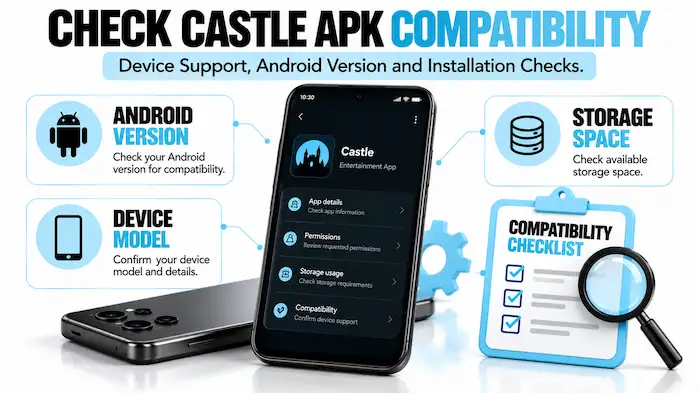
Visit the Castle app homepage for an overview of the app and links to related information.
Check Your Android Version
Apps may need a certain Android version to work. If your phone runs an older system, an APK may fail to install or open.
Follow these steps:
- Open your phone’s Settings.
- Select About phone or About device.
- Find Android version.
- Compare it with the app’s stated requirements, if available.
Menu names can vary by phone brand. If your device does not meet the stated needs, do not force the installation. Check whether your phone has a trusted system update available.
Check Your Device Model
Your phone model can affect app support. Some devices use different hardware or system software, even when they run the same Android version.
To find your model, open Settings and look under About phone. Note the model name and check the app’s requirements when reliable details are available. If the source does not list supported devices, you cannot assume that your model will work.
Check Available Storage
Your phone needs enough free space to install an app. Low storage may stop an install or affect app performance.
Check your storage in the device settings. If space is low, remove files you no longer need or uninstall apps you do not use. Do not delete system files or personal data unless you know what they contain.
Also, remember that the space needed for an app may differ from the size of its APK file. The device may need extra room during installation and use.
Check the APK File Source
A file’s name does not prove that it is genuine or safe. Some websites offer changed files or use fake download buttons.
Before you install an APK:
- Check who provides the file.
- Review the app name and package details.
- Look for clear version information.
- Scan the file with a trusted security tool when possible.
- Avoid sites that make claims they cannot prove.
If you cannot verify the source, do not install the file. A file that installs without an error can still pose a security risk.
Before installing a file, review the Castle APK download page for source checks and safe installation advice.
Check the App Requirements
Look for reliable information about the app’s Android needs and supported devices. Check whether the app requires a certain system version or other features.
Do not trust a page that lists device support without clear evidence. If the requirements are missing, treat compatibility as unknown. It is safer to wait for reliable details than to force an install.
Check Whether Your Device Supports APK Files
Android devices can install apps through trusted app stores. Manual APK installation may also be possible, depending on the device and its settings.
However, an APK file is not the same as an app-store listing. Before you use a file from outside a store, check its source and read the system warning. Do not turn off key security tools just to complete the installation.
If you cannot verify the file, cancel the process.
Check Castle APK Compatibility on a Tablet
Many Android tablets use the same basic app format as Android phones. Still, this does not mean every phone app works well on every tablet.
Check the tablet’s Android version, model, and storage. Also, consider whether the app layout suits a larger screen. If the publisher does not confirm tablet support, treat it as unknown.
Check Castle APK Compatibility on Android TV
Android TV and Google TV devices may support some Android apps, but not every app works on a television. The app may lack remote control support or may not fit the TV screen.
Check the TV’s operating system and the app’s requirements. Also, confirm that the app supports remote navigation.
Can Castle APK Run on a PC?
An Android APK does not run like a normal Windows program. Some Android apps can run through an emulator, but support varies by app and computer.
Check whether Castle offers a verified PC version or supports a suitable emulator. Review the emulator’s system needs before you install it. Do not trust websites that claim guaranteed PC support without clear proof.
For more details, read our Castle for PC guide.
Signs That an APK May Not Be Compatible
Some errors may point to a compatibility issue. These signs do not prove the cause, but they can help you decide what to check next.
- Android reports that the app is not installed.
- The file cannot be parsed.
- The app closes soon after opening.
- The app fails to load on a supported system.
- The device reports that the package is not supported.
Read the full error message and compare it with the app’s stated needs. A damaged file or low storage can cause similar problems, so check those factors too.
How to Fix Common Compatibility Problems
If the app does not work, start with simple checks. Confirm your Android version and device model. Then check storage and the file source.
Restart your device if the problem seems temporary. You can also check for system updates from your device maker. If the error continues, review the app’s requirements before trying another file.
Do not install random APK copies to get around a compatibility error. An unknown file may create more problems than it solves.
For step-by-step help, read our Castle APK for Android guide. If the issue started during an update, check our guide to Castle APK old version for information about older files and their risks.
Pros and Cons of Checking Compatibility First
Checking compatibility before installation takes a little time, but it can help you avoid common errors.
Pros
Cons
Compatibility checks can reduce risk, but they cannot guarantee that an app will work in every case.
Frequently Asked Questions
How Do I Check Castle APK Compatibility?
Check your Android version, device model, free storage, and the app’s stated requirements. Use reliable sources for support details.
Does Castle APK Work on Every Android Phone?
No. Support depends on the app’s requirements and your device. Do not assume that every Android phone can run it.
Can I Install Castle APK on a Tablet?
It may work if the app supports your tablet and Android version. Check the device details before you install the file.
Why Does My Phone Say App Not Installed?
The file may not support your device, may be damaged, or may conflict with an existing package. Check the error message and file details.
Can Castle APK Work on Android TV?
That depends on the app and TV system. Check the requirements and remote control support before you try to install it.
Is a Compatible APK Always Safe?
No. Compatibility and safety are different checks. A file may run on your device but still come from an unsafe source.
Conclusion
Castle APK Compatibility depends on your device, Android version, storage, and the app’s requirements. Check these details before you install a file. Also, verify the source and review any security warning. If the app does not work, read the error message and check compatibility before trying another file. These steps can help you avoid failed installs and reduce security risks.