
Castle APK Download gives Android users a way to install the Castle entertainment app. The app focuses on movies and other video content. Before you install it, check the file source and device needs. Also, review the app details and requested permissions. These steps help you avoid damaged files and unsafe apps. This page explains how to check, download, and install the file. It also covers common errors and ways to fix them.
Castle APK download gives Android users a way to install the Castle entertainment app. Read our overview of the Castle app to learn more about its purpose and features.
What Is Castle APK Download?
Castle APK download means getting the Android file used to install the Castle app. Android uses APK files to install apps on a device. Some websites offer these files outside the usual app store. However, not every source is safe. An unknown site may share a damaged or changed file. Check the publisher, file details, and device needs before you install it. If you cannot confirm the file’s source, do not install it.

Castle APK Download Information
Check the file details before you install the app. A good download page should name the app and its publisher. It should also list the version and supported devices when this data is known. These details help you check if the file matches the app you want. Do not trust a logo or app name alone. Other sites can copy both. If a page hides key details, look for a source you can verify.
What to Check Before Downloading
Review these details before you save the file:
|
App Information |
Details |
|---|---|
|
App Name |
Castle |
|
Category |
Entertainment |
|
Version |
Latest Version |
|
File Type |
APK |
|
Android Requirement |
Android 5.0 or above |
|
License |
Free |
|
Developer |
Castle Team |
|
Availability |
Free to Download |
These checks help you make a better choice. Still, no single check proves that a file is safe. Review all the details before you install it.
How to Download Castle App on Android
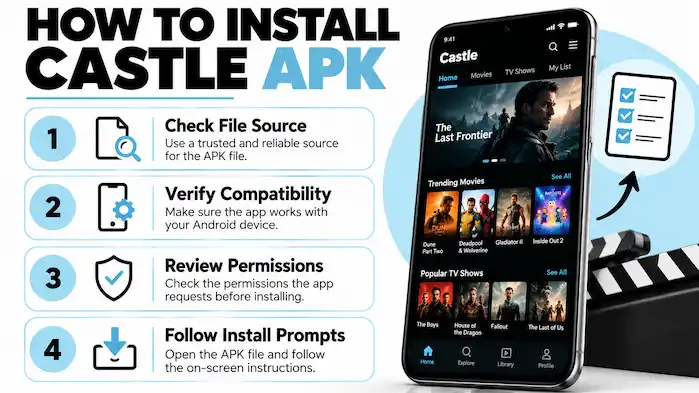
Check your device before you install an APK file. First, find a source you can trust. Then, check the app details and Android needs. Make sure your device has enough free space. Once you finish these checks, follow the steps below. If you cannot confirm the file’s source, do not install it.
Step 1: Find a Reliable File Source
Choose a site that shares clear details about the app and its publisher. Read the page before you tap a download link. Avoid sites with fake buttons or unclear file sources. Also, check the device needs listed on the page. A clear source helps you learn what you are about to install. If the page makes claims without proof, look for better information.
Step 2: Check Your Android Device
Open your phone’s settings and check the Android version. Compare it with the app’s stated needs. Make sure your device has enough free space, too. An APK may work on one phone but fail on another. This can happen when devices use different Android versions. If the source does not list the app’s needs, do not guess. Find more details before you install the file.
Step 3: Save the Installation File
Use the download link on the source page you checked. Wait until the file finishes saving. If the download stops, check your internet connection and try again only after you review the source. Do not open files with strange names or unknown formats. Compare the saved file with the details on the page. If they do not match, delete the file and check the source again.
Step 4: Check the Installation Prompt
Open the saved file from your browser’s download list or file manager. Android may show an install prompt or a safety warning. Read the message before you act. If Android reports a problem, check the cause first. Do not ignore a warning just to finish the setup. Install the app only when you understand the prompt and trust the file.
Step 5: Open and Check the App
After the install, open the app and review its menus. Check that the app works as expected. If it asks for access to your data, think about why it needs that access. Do not share private details with an app you cannot verify. If the app crashes or shows an error, check the file source and device needs before you try again.
For more details about Android compatibility and installation, read our guide on how to install Castle APK on Android.
Castle APK Installation Requirements
The install process depends on your Android version, free space, and the APK file. A file may fail if your phone does not support it. The package may also be damaged or incomplete. Check the source’s stated needs before you start. Make sure the file has saved in full and your device has enough free space. If the source gives no clear details, do not assume the app will work.
Can You Install Castle APK on a PC?
An Android APK does not work like a normal Windows program. First, check if the app has a PC version. Some Android apps may work with an emulator, but not all apps support this method. The result also depends on your computer and the emulator. Check the system needs before you choose this option. Do not assume that an APK will work on every PC.
Does Castle Support Android TV?
Castle support for Android TV depends on the app version and your TV system. A phone app may install on a TV but still lack proper controls. The screen layout may also cause problems. Check if the source offers a version for Android TV. Then, confirm that your TV meets its needs. A general Android guide does not prove that the app works on a TV.
Castle APK Safety and File Checks
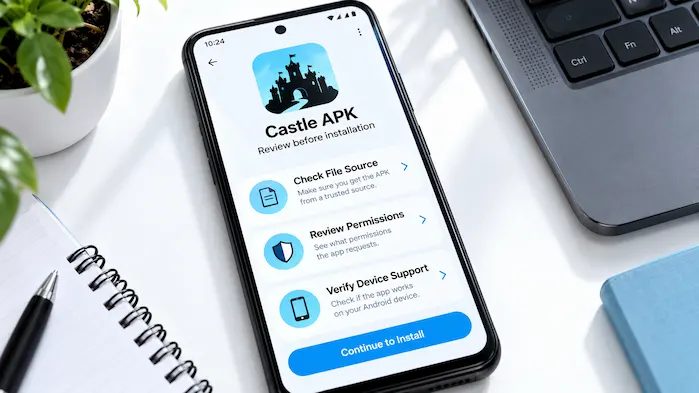
An APK from an unknown site may put your device or data at risk. A known app name does not prove that a file is real. Check the source, publisher, and app permissions before you install it. Review any security claims and look for proof. A badge or logo alone does not show that a file is safe. If you cannot check where the file came from, avoid installing it.
Check the File Source
Choose a source that explains where the file came from. Compare its details with data from a trusted publisher when possible. Some sources provide a checksum, which is a code used to check a file. If you have a trusted value, compare it with the file’s value. A match shows that the file matches that reference. It does not prove that the file has no harmful code. If you cannot check the source, do not install the file.
Review App Permissions
Check each permission the app asks for. Think about why the app needs that access. For example, an app may need internet access to play online videos. However, access to private data may need closer review. Deny access that the app does not need when your device allows it. If a permission seems wrong for the app, stop and check the source before you continue.
Protect Your Personal Data
Do not share passwords or payment details unless you trust the service. Read the privacy policy to learn how the app may use your data. Keep your phone and browser up to date. Avoid entering account details on sites you do not know. These steps cannot remove every risk. Still, they can help you make safer choices when you install apps.
Pros and Cons of Castle App
Castle app may suit users who want to browse movie content through an Android app. However, its value depends on the available content, app version, and device support. Check these points before you decide to use it. You should also think about the risks of installing an APK from outside a trusted app store.
Pros
Cons
Common Castle APK Download Problems and Fixes
Download and install errors can have several causes. The file may be damaged, the device may not support it, or the phone may lack free space. Start by reading the error message. Then, check the file source and device needs. Do not rush to download another file from a random site. Use a source you can verify before you try again.
Why Will Castle APK Not Install?
The file may be damaged or your phone may not support it. First, check if the download finished. Next, compare the file details with the source page. Make sure your phone has enough free space. If the error remains, delete the damaged file. Then, look for a verified copy from a source you trust. Do not force the install without knowing why it failed.
Why Does Castle APK Show a Parsing Error?
A parsing error means Android cannot read or process the file. The APK may be damaged or may not support your Android version. Check the phone’s Android version and compare it with the app’s needs. If the file did not save in full, get a new copy from a source you trust. Do not turn off safety settings just to bypass the error.
Why Does Castle APK Keep Crashing?
The app may crash due to a software issue or lack of free space. Restart your phone and close apps you do not need. Check your storage and the app’s system needs. If the app still crashes, review the error message and file source. Avoid random modified APKs as a quick fix. They may create more problems or put your data at risk.
What If the Download Stops?
A weak internet connection or a browser issue may stop a download. Check your connection and make sure your phone has enough free space. Open the browser’s download list to check the file status. If the file is incomplete, delete it before you try again. Use a source you trust and check the file details after it saves.
Frequently Asked Questions
Conclusion
Castle APK download gives Android users a way to get the Castle app’s install file. Before you install it, check the source, file details, device needs, and permissions. Read any Android warning and find out why it appears. If the file’s source or device support remains unclear, do not install it. These simple checks can help you avoid unsafe files and common install problems.